Tunnelry user guide
Tunnelry turns one fresh Debian or Ubuntu server into a locked-down OpenVPN server that a small team manages from a web page. This guide is for the person who installs and runs it. Po polsku: pl/README.md.
| Guide | When you need it |
|---|---|
| 1. Installing | first installation, requirements, the installer's options |
| 2. The setup wizard | the first ten minutes in the browser |
| 3. Everyday use | profiles, roles and rules, the DNS server, who is connected, server health |
| 4. Updating | installing a new version, and what happens if it goes wrong |
| 5. Backup and restore | encrypted backups, moving to a new installation |
| 6. Access to the web interface, and getting back in | limiting who can open the page; lost access, lost 2FA |
| 7. Uninstalling and troubleshooting | removing Tunnelry; where to look when something does not work |
| 8. Giving the server a static address | a fixed address on Debian and Ubuntu, so the VPN keeps working |
Ideas worth knowing first
- One server, one machine. The web interface, OpenVPN, the firewall and the optional DNS server all run on the same server. Tunnelry manages that one server; it does not manage others.
- A profile is one device. Every phone or laptop gets its own profile (a small
.ovpnfile). Revoking it cuts that device off without touching the others. - A role decides what a device may reach. Roles ("administrator", "user", your own) are lists of allowed destinations. The server's firewall enforces them, so a device cannot get around them.
- Changes are staged. Edits are saved first, then you press Apply. The server then asks you to confirm that you can still see the page; if you do not confirm within the time shown, it undoes the change by itself. A change that locks you out therefore fixes itself.
- The web page cannot do everything. Anything that needs full control of the machine (restoring a backup, opening the web interface to everybody again) is done only from the server's own console, on purpose.
The interface is in English and Polish; change the language with the language buttons in the top bar (on the login and setup pages too).
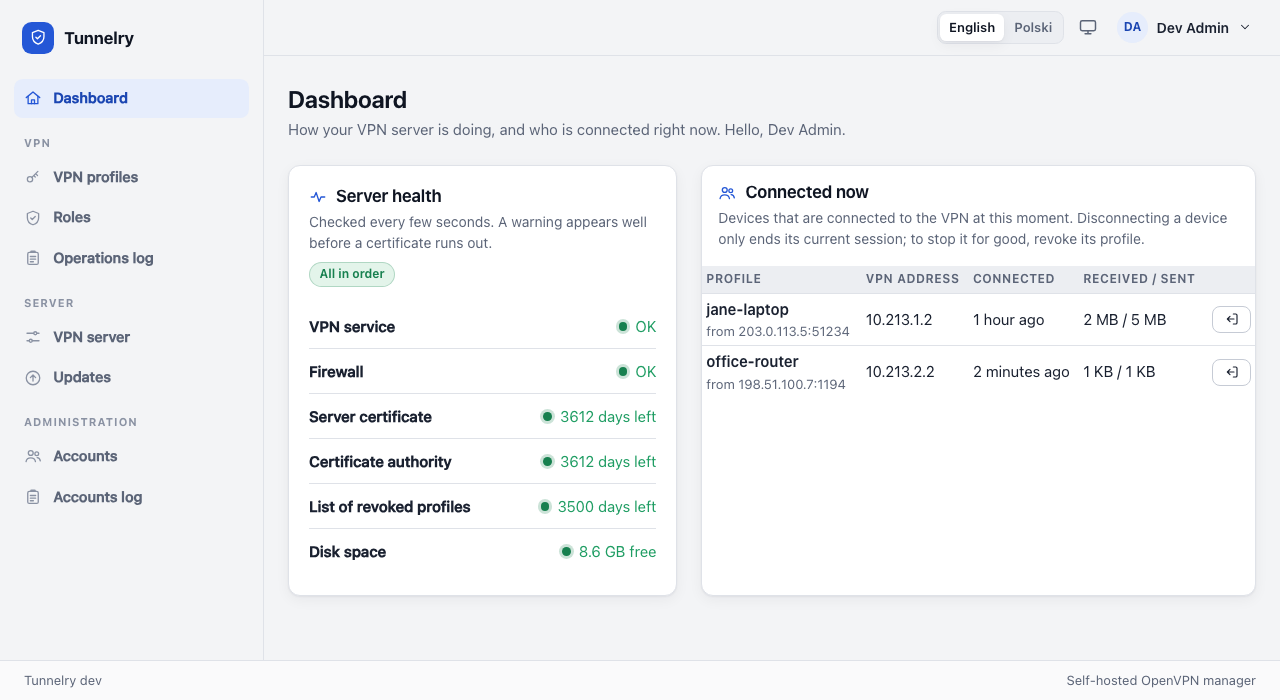
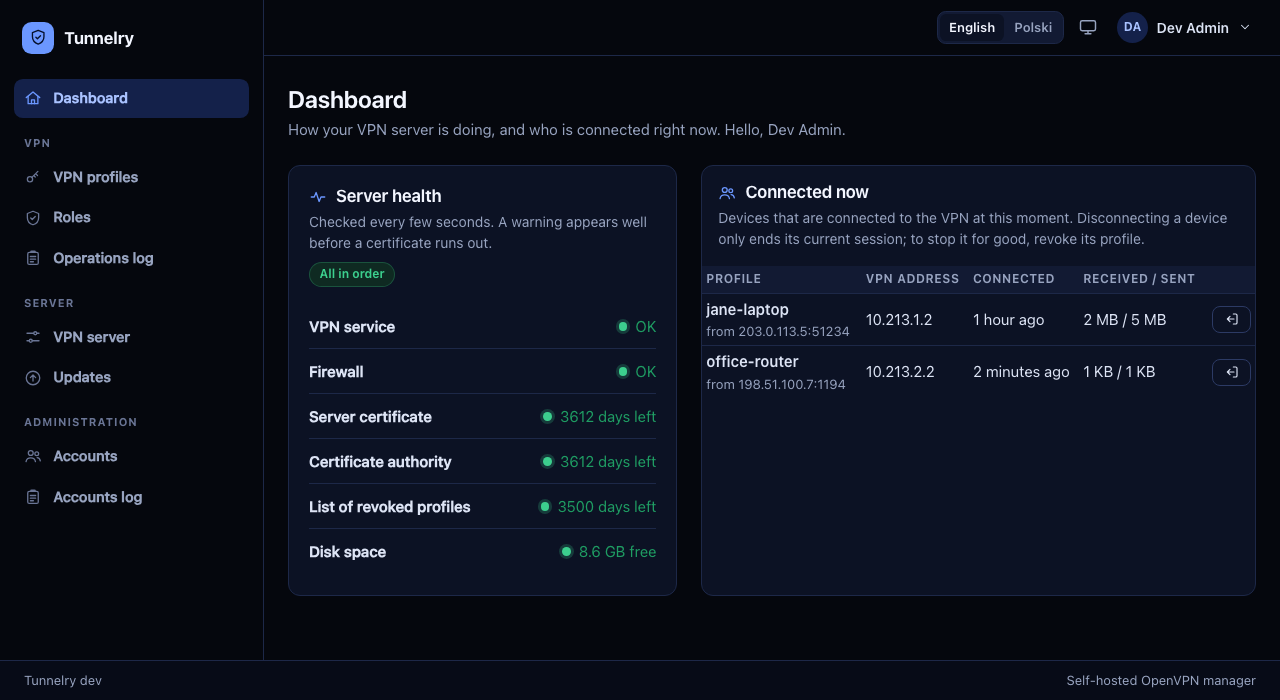
The interface has a light and a dark theme. By default it follows your system; the button next to the language switcher in the top bar lets you pick one.